Introduction
What is iLAB SecureX?
The platform that turns months of manual ATO work into weeks of automated, evidence-driven compliance.
iLAB SecureX is an automated Authority to Operate (ATO) platform built for DoD and federal government systems. It replaces the traditional manual process — where ISSOs spend 6 to 18 months writing control narratives by hand, taking screenshots of configurations, and formatting 500-page documents — with a live, evidence-driven workflow.
The platform does three things that no manual process can:
- Collects evidence automatically — 6 pluggable adapters connect directly to your AWS infrastructure, source code repositories, vulnerability scanners, SBOM generators, STIG compliance tools, and test frameworks. Evidence is collected via API, not screenshots.
- Generates narratives with AI — Amazon Bedrock reads your actual evidence and writes control implementation narratives that reference your real IAM roles, VPC configurations, and scan results. Not boilerplate — evidence-specific.
- Exports submission-ready packages — One click produces OSCAL JSON, Word documents, PDFs, or eMASS CSV files ready for your assessor.
Core Principle: AI Drafts, Humans Decide
Every AI-generated narrative is saved as a draft. The ISSO reviews, edits if needed, and approves before anything goes into the ATO package. The platform accelerates the work — humans own the decisions.
Who Uses iLAB SecureX?
| Role | What They Do in the Platform |
|---|
| ISSO (Information System Security Officer) | Primary user. Registers systems, collects evidence, reviews AI-generated narratives, approves controls, manages POA&Ms, exports ATO packages. |
| ISSM (Information System Security Manager) | Oversight. Reviews compliance dashboards across systems, approves narrative batches, monitors ATO readiness posture. |
| Developer | Triggers evidence collection from CI/CD pipelines, views control status, provides technical context for narratives. |
| Assessor | Reviews evidence-backed narratives with integrity hashes, exports OSCAL for machine-readable assessment. |
| Authorizing Official (AO) | Views ATO readiness dashboards, reviews final packages, makes authorization decisions. |
Supported Compliance Frameworks
| Framework | Controls | Use Case |
|---|
| NIST 800-53 Rev 5 (IL5) | 325 | DoD systems on AWS GovCloud |
| NIST 800-53 Rev 5 (IL4) | 370 | DoD systems on AWS GovCloud |
| FedRAMP High | 421 | Cloud service providers |
| CMMC Level 2 | 110 | Defense contractors handling CUI |
| NIST 800-171 Rev 2 | 110 | Non-federal systems with CUI |
| Custom profiles | Any | Agency-specific or international frameworks |
The Story
Meet the Team
Throughout this manual, we follow a fictional team as they use iLAB SecureX to get an ATO for their cloud-native application.
🏢 The Scenario
Organization: Defense Systems Group (DSG), a DoD program office
Application: Task Manager Sample App (TMSA) — a cloud-native web application deployed on AWS
Goal: Obtain an Authority to Operate at NIST 800-53 Moderate baseline
Timeline: 3 weeks (compared to the traditional 6–12 months)
👥 The Team
Sarah Chen, ISSO — Owns the ATO package. She'll register the system, collect evidence, review narratives, and export the final package.
Marcus Williams, Developer — Built the application. He'll provide the source code repository URL and answer technical questions about the architecture.
Dr. Priya Patel, ISSM — Oversees all systems in the program. She'll review the compliance dashboard and approve the final package.
James Rodriguez, Assessor — External reviewer from the assessment team. He'll evaluate the evidence and narratives.
Let's follow Sarah as she takes TMSA from zero to ATO-ready using iLAB SecureX.
Chapter 1
Register Your System
Sarah's first step: tell the platform about the system she needs to authorize.
📖 Story
Sarah logs into iLAB SecureX and sees the Systems page — the starting point for all ATO work. She needs to register TMSA as a new system so the platform knows what it's working with.
The Systems page is the home screen of iLAB SecureX. It shows all authorization boundaries (systems) managed by the platform. Each system has its own controls, evidence, narratives, and export packages.
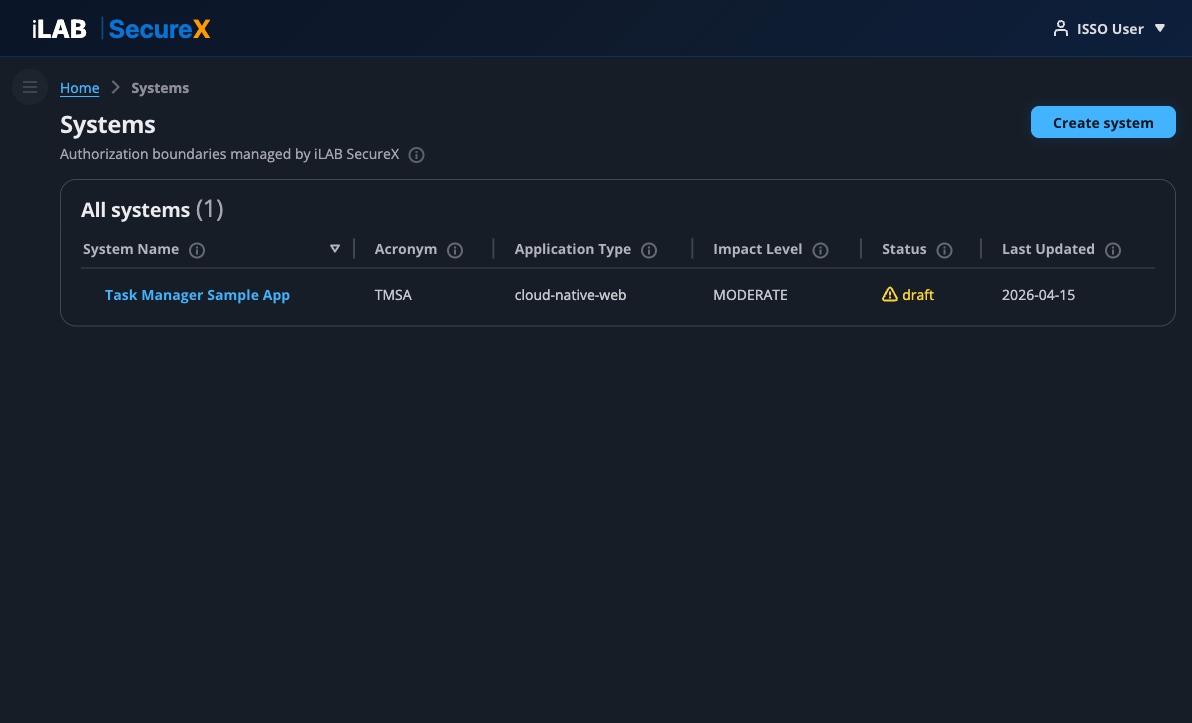
Figure 1.1: The Systems page — Sarah's starting point. She can see any existing systems and create new ones.
Creating a New System
Click "Create system" in the top right to open the system registration form.
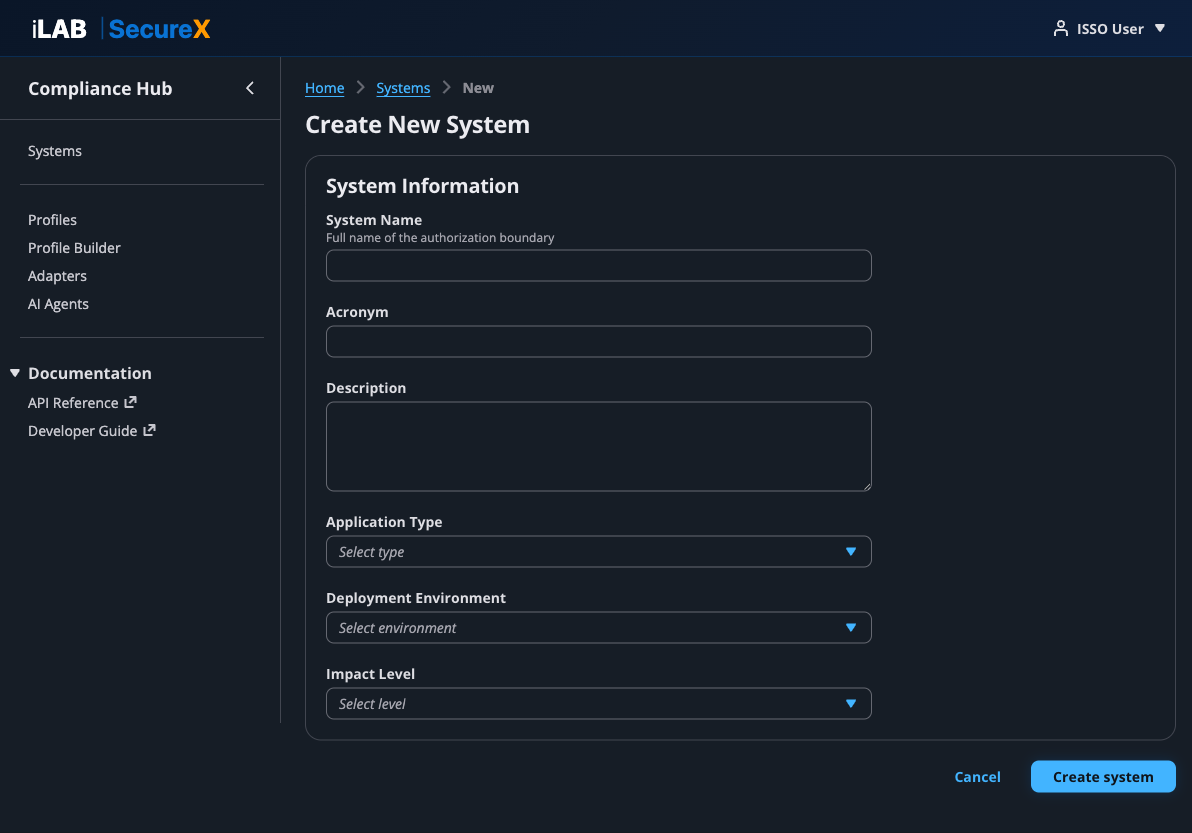
Figure 1.2: The Create System form. Sarah fills in the system details that will appear in the SSP.
Form Fields
| Field | Description | Sarah's Entry |
|---|
| System Name | The official name of the information system as it appears in the SSP and ATO package. | Task Manager Sample App |
| Acronym | A short identifier (3–6 characters). Used in export filenames and references. | TMSA |
| Description | A brief description of what the system does and its purpose. | Sample task manager application for ATO demo |
| Application Type | The architectural pattern. Options include: cloud-native-web, serverless, container-platform, data-pipeline, ai-ml-platform, and more. | cloud-native-web |
| Deployment Environment | Where the system is deployed. Options: aws-govcloud, aws-commercial, azure-government, on-prem-datacenter, air-gapped, etc. | aws-commercial |
| Impact Level | The FIPS 199 categorization. Options: LOW, MODERATE, HIGH, IL2, IL4, IL5, IL6. | MODERATE |
After clicking "Create system", the platform:
- Creates the system record with a unique UUID
- Loads the control catalog from the assigned compliance profile
- Applies the inheritance model (marking CSP-inherited controls)
- Redirects Sarah to the System Dashboard
💡 Contextual Help
Throughout the application, you'll see small ⓘ icons next to labels and column headers. Click or hover over these to see contextual help explaining what each field means and how it's used in the ATO process.
Chapter 2
The System Dashboard
Sarah's command center — a single view of where the system stands in the ATO process.
📖 Story
After creating TMSA, Sarah lands on the System Dashboard. This is her home base for the entire ATO process. She can see at a glance how much work is done and what's left.
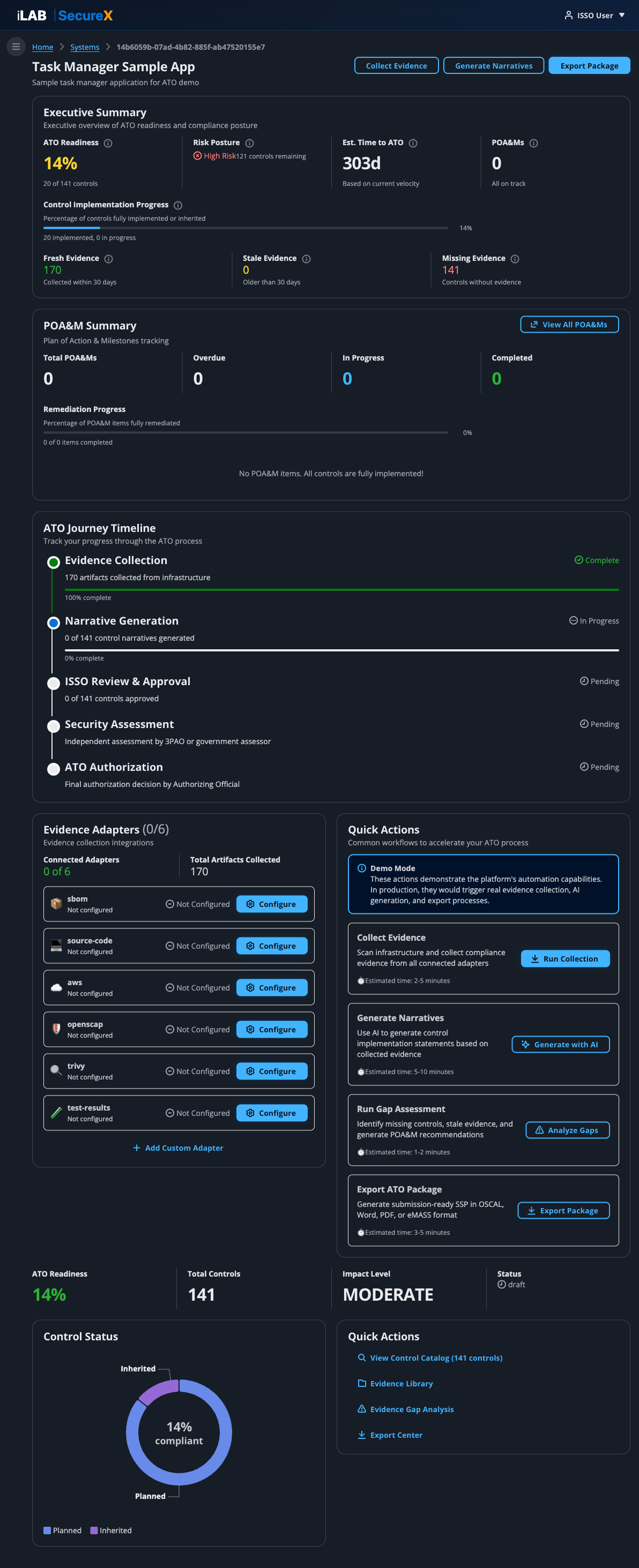
Figure 2.1: The System Dashboard for TMSA. Shows 14% ATO readiness, 141 controls, 170 evidence artifacts, and the ATO Journey Timeline.
Dashboard Sections
Executive Summary
The top card shows the key metrics at a glance:
- ATO Readiness — Percentage of controls fully implemented or inherited. A system typically needs 90%+ before submitting for assessment.
- Risk Posture — Overall risk level based on unimplemented controls and open POA&M items.
- Est. Time to ATO — Estimated calendar days to reach ATO-ready status, calculated from your current implementation velocity.
- POA&Ms — Number of active Plan of Action & Milestones items.
- Control Implementation Progress — Progress bar showing implemented vs. total controls.
- Evidence Health — Fresh evidence (collected within 30 days), stale evidence (older than 30 days), and missing evidence (controls without any evidence).
POA&M Summary
Shows total POA&M items, overdue count, in-progress count, completed count, and a remediation progress bar. High-priority items and upcoming due dates are highlighted.
ATO Journey Timeline
A visual 5-phase timeline showing where you are in the ATO process:
- Evidence Collection — Collect compliance artifacts from infrastructure
- Narrative Generation — AI generates control implementation narratives
- ISSO Review & Approval — Human review and approval of narratives
- Security Assessment — Independent assessment by 3PAO or government assessor
- ATO Authorization — Final authorization decision by the AO
Evidence Adapters
Shows the status of all 6 evidence adapters — which are connected, how many artifacts each has collected, and when the last collection ran. Click "Configure" to set up any adapter.
Quick Actions
One-click shortcuts to the most common workflows: Collect Evidence, Generate Narratives, Export Package, and Run Gap Assessment.
Control Status Pie Chart
A donut chart showing the breakdown of control implementation status: Implemented (green), Partially Implemented (orange), Planned (blue), Inherited (purple), and Not Applicable (grey).
💡 Header Action Buttons
The three buttons in the page header — Collect Evidence, Generate Narratives, and Export Package — are always visible on the dashboard. They're the primary workflow actions Sarah will use throughout the ATO process.
Chapter 3
Collect Evidence
The foundation of every ATO — real, current evidence from your actual infrastructure.
📖 Story
Sarah clicks "Collect Evidence" from the dashboard. Marcus, the developer, gives her the CodeCommit repository URL for the TMSA application. She selects all 6 adapters and kicks off the collection. In under 2 minutes, the platform collects 170+ evidence artifacts — each with a SHA-256 integrity hash and mapped to specific NIST 800-53 controls.
The Evidence Library page is where you collect, view, and manage all compliance evidence for a system. Evidence is the raw data that proves your system implements security controls.

Figure 3.1: The Evidence Library. Top: collection panel with adapter selection. Bottom: all 170 collected evidence artifacts with types, sources, control mappings, timestamps, and integrity hashes.
Step-by-Step: Collecting Evidence
1
Select Adapters
Check the adapters you want to run. Each adapter collects different types of evidence:
| Adapter | What It Collects | Controls Mapped |
|---|
| Source Code Analyzer | Authentication patterns, RBAC implementations, audit trail code, input validation, encryption usage, dependency manifests, Docker configurations | AC-3, AU-2, IA-2, SC-13, SI-10, SA-11, CM-7 |
| AWS Infrastructure | IAM policies & roles, CloudTrail configuration, KMS key inventory, VPC & security groups, Security Hub findings, CloudWatch log groups | AC-2, AC-3, AC-6, AU-2, AU-6, SC-7, SC-12, SC-28 |
| Trivy Vulnerability Scan | Container vulnerabilities (CVEs), infrastructure misconfigurations, exposed secrets | RA-5, SI-2, CM-6 |
| SBOM (Syft + Grype) | Software Bill of Materials in SPDX and CycloneDX formats, vulnerability correlation | SA-11, SR-4, CM-8 |
| Test Results | Unit/integration test execution, pass/fail counts, coverage metrics | SA-11, SI-6 |
| OpenSCAP STIG Scan | STIG compliance scans via SSM on EC2 instances, XCCDF evaluation results | CM-6, SI-2, RA-5 |
2
Enter Repository URL
If you selected Source Code Analyzer, Trivy, SBOM, or Test Results, enter the Git repository URL. The platform supports CodeCommit HTTPS URLs and any Git HTTPS URL.
Example: https://git-codecommit.us-east-2.amazonaws.com/v1/repos/task-manager-app
3
Enter AWS Region
If you selected AWS Infrastructure or OpenSCAP, enter the AWS region where your infrastructure is deployed (e.g., us-east-2).
4
Click "Run Evidence Collection"
The platform runs two types of collection:
- Synchronous (inline) — Source Code Analyzer and AWS Infrastructure run immediately. Results appear in seconds.
- Asynchronous (background) — Trivy, SBOM, Test Results, and OpenSCAP run in a container Lambda in the background. A banner shows progress, and the table auto-refreshes every 15 seconds.
Understanding Evidence Artifacts
Each collected artifact has:
- Evidence Type — The category (e.g.,
iam_policy_snapshot, rbac_configuration, vulnerability_scan)
- Source Adapter — Which adapter collected it (e.g.,
aws, source-code)
- Mapped Controls — The NIST 800-53 control IDs this evidence supports (e.g., AC-2, AC-3, SC-7)
- Collected At — Timestamp of when the evidence was collected
- SHA-256 Hash — Cryptographic integrity hash proving the evidence hasn't been tampered with
Collection Run History
Below the collection panel, a Collection Run History table shows all previous collection runs with their status, adapters used, artifact counts, and timestamps. This provides an audit trail of when evidence was collected.
⚠️ Evidence Freshness
Assessors want to see recent evidence. The dashboard tracks "Fresh Evidence" (collected within 30 days) and "Stale Evidence" (older than 30 days). Re-collect evidence before submission to ensure everything is current.
Chapter 4
Review Evidence Gaps
What's missing? The gap analysis tells you exactly which controls need more evidence.
📖 Story
After collecting evidence, Sarah clicks "View Gaps" to see if any controls are missing required evidence. The gap analysis compares her collected evidence against the profile's requirements and shows exactly what's missing.
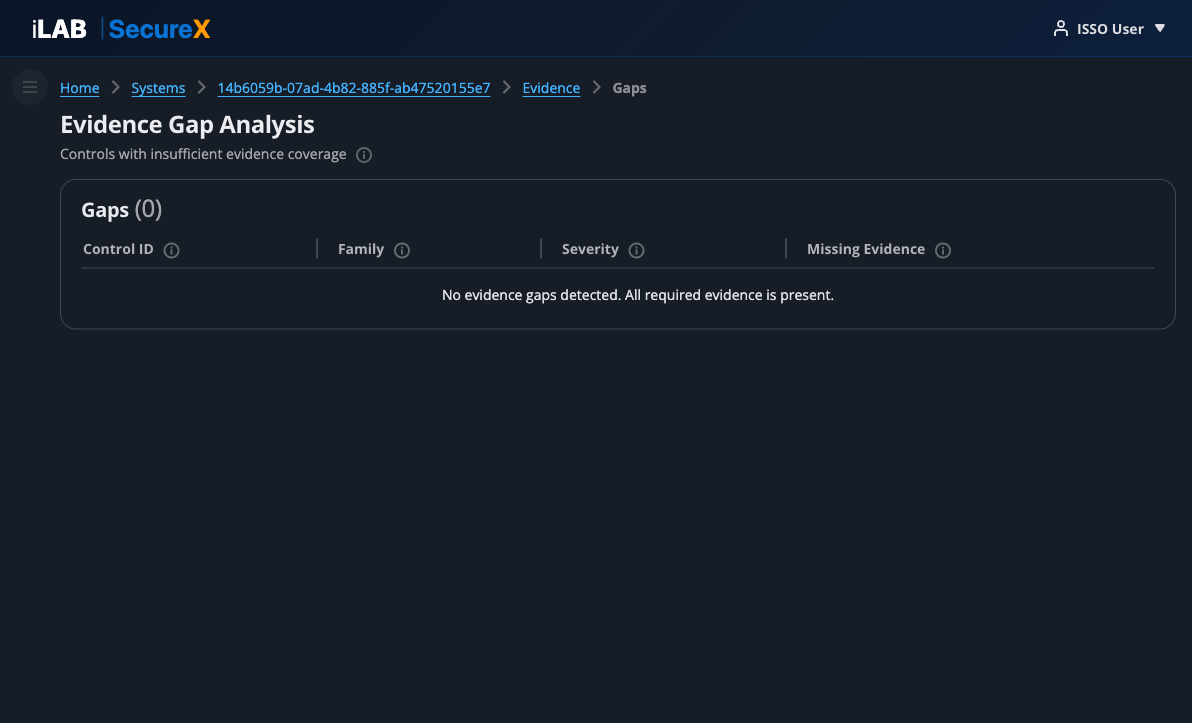
Figure 4.1: Evidence Gap Analysis. In this case, all required evidence is present — no gaps detected. When gaps exist, the table shows each control ID, family, severity, and the specific missing evidence types.
The gap analysis page shows:
- Control ID — The NIST 800-53 control that has insufficient evidence
- Family — The control family (AC, AU, CM, IA, SC, etc.)
- Severity — How critical the gap is (Critical, High, Medium, Low)
- Missing Evidence — The specific evidence types needed, with the adapter that should collect them
When gaps are found, the remediation path is clear: go back to the Evidence page, select the appropriate adapter, and collect the missing evidence type.
✅ Sarah's Result
With all 6 adapters run against the TMSA repository and AWS account, Sarah has zero evidence gaps. All required evidence types are present. She's ready to move to narrative generation.
Chapter 5
The Control Catalog
141 controls, searchable and filterable — the backbone of your ATO package.
📖 Story
Sarah navigates to the Control Catalog to see all 141 NIST 800-53 controls required by her compliance profile. She can search by control ID or title, filter by family, and click into any control to see its implementation status, narrative, and linked evidence.
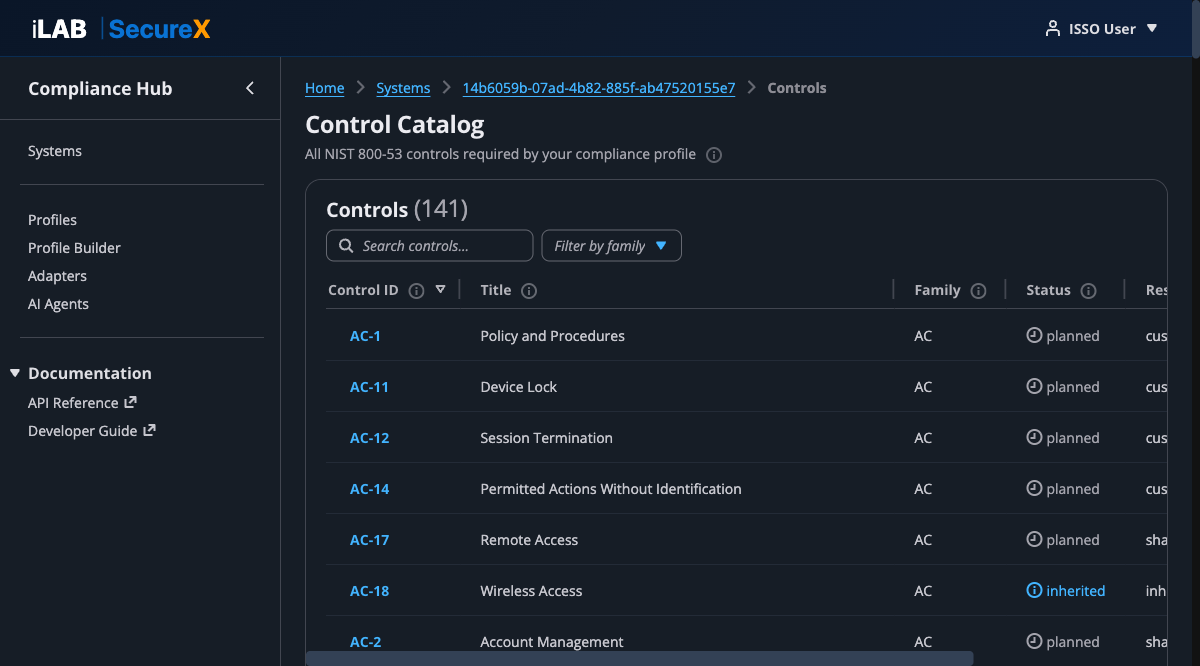
Figure 5.1: The Control Catalog. 141 controls with search, family filter, implementation status, responsibility, and narrative status columns.
Understanding Control Status
| Status | Meaning | Color |
|---|
| Implemented | Control is fully implemented with sufficient evidence | Green |
| Partially Implemented | Some aspects are implemented but gaps remain | Orange |
| Planned | Control implementation is planned but not yet in place | Blue |
| Inherited | Control is inherited from the Cloud Service Provider (e.g., AWS) | Info |
| Not Applicable | Control is excluded by the compliance profile | Grey |
Responsibility Types
- Customer — Your organization is fully responsible for implementing this control
- Inherited — The CSP (e.g., AWS) is fully responsible
- Shared — Both the CSP and your organization share responsibility
- Provider — A service provider is responsible
Narrative Status
- Approved — ISSO has reviewed and accepted the narrative
- Draft — AI-generated, pending human review
- Rejected — Needs revision
- None — No narrative generated yet
Click any Control ID link to open the Control Detail page.
Chapter 6
Generate AI Narratives
The AI reads your evidence and writes control implementation narratives — specific to your system, not boilerplate.
📖 Story
With 170 evidence artifacts collected, Sarah navigates to the Narrative Review page. She selects "Amazon Nova Pro" as the AI model and clicks "Generate All Narratives." The platform sends each control's evidence to Amazon Bedrock, which generates a narrative specific to TMSA's actual configurations. In about 5–10 minutes, 121 narratives are generated.
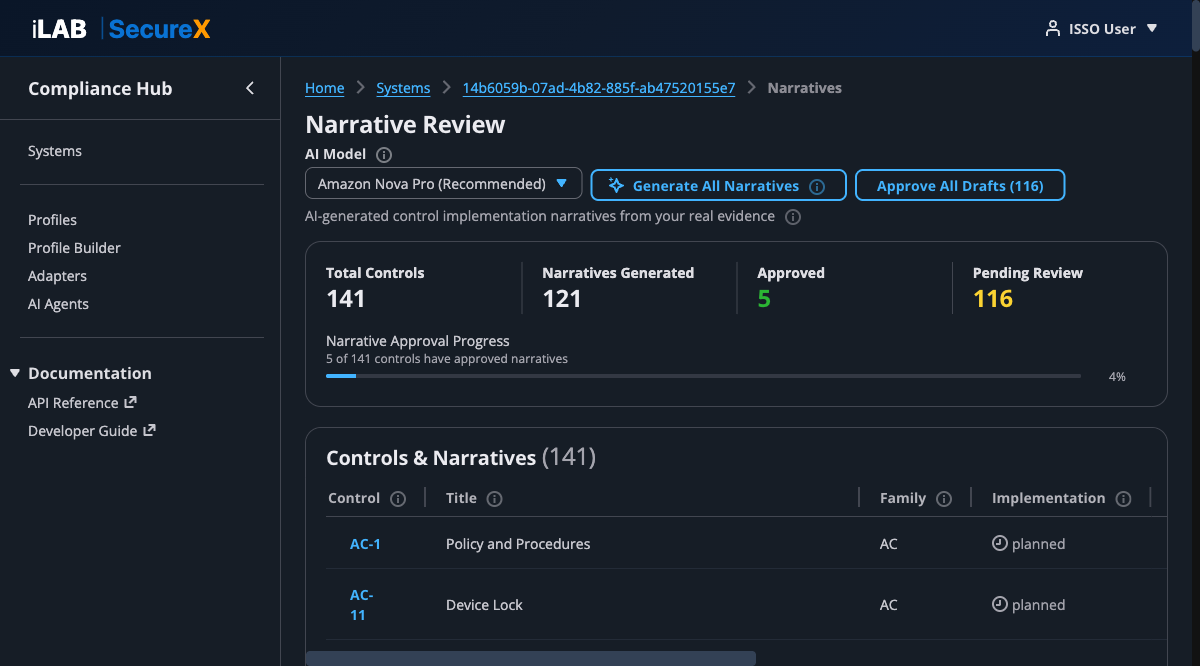
Figure 6.1: The Narrative Review page. Shows 121 of 141 narratives generated, 5 approved, 116 pending review. The AI model selector and bulk action buttons are in the header.
Step-by-Step: Generating Narratives
1
Select an AI Model
Choose the model that best fits your needs:
| Model | Quality | Speed | Notes |
|---|
| Amazon Nova Pro | High | Moderate | Recommended for production use |
| Amazon Nova Lite | Good | Fast | Good for drafts and iteration |
| Amazon Nova Micro | Basic | Fastest | Quick previews |
| Claude Sonnet 4.5 | Highest | Slow | Requires AWS Marketplace subscription |
| Claude Sonnet 4 | Very High | Moderate | Requires AWS Marketplace subscription |
| Claude 3.5 Haiku | Good | Fast | Requires AWS Marketplace subscription |
2
Click "Generate All Narratives"
The platform iterates through every control that has linked evidence and sends the evidence data to the AI model. Controls without evidence are skipped. A progress banner shows the generation status, and the page auto-refreshes every 10 seconds.
3
Monitor Progress
The progress summary at the top updates in real time:
- Total Controls — Total number of controls in the profile
- Narratives Generated — How many have been written by the AI
- Approved — How many the ISSO has approved
- Pending Review — How many are waiting for human review
The Narrative Approval Progress bar shows the percentage of controls with approved narratives.
What Makes These Narratives Different
Unlike template-based tools that produce generic boilerplate, iLAB SecureX narratives reference your actual data:
- For AC-2 (Account Management), the AI cites the specific IAM roles it found in your AWS account, their permission boundaries, and the RBAC patterns in your source code
- For SC-7 (Boundary Protection), it describes your actual VPC configuration with subnet counts and security group rules
- For RA-5 (Vulnerability Scanning), it references the Trivy scan results with specific CVE counts and severity levels
💡 Re-generating Narratives
You can re-generate narratives at any time — for example, after collecting new evidence or switching to a different AI model. Previously generated narratives will be overwritten with fresh ones.
Chapter 7
Review & Approve Narratives
AI drafts, humans decide — the ISSO reviews every narrative before it enters the ATO package.
📖 Story
Sarah clicks into AC-2 (Account Management) to review the AI-generated narrative. She reads through it, verifies the evidence citations are accurate, and clicks "Approve." For controls where the narrative needs adjustment, she clicks "Edit" to refine the text before approving.
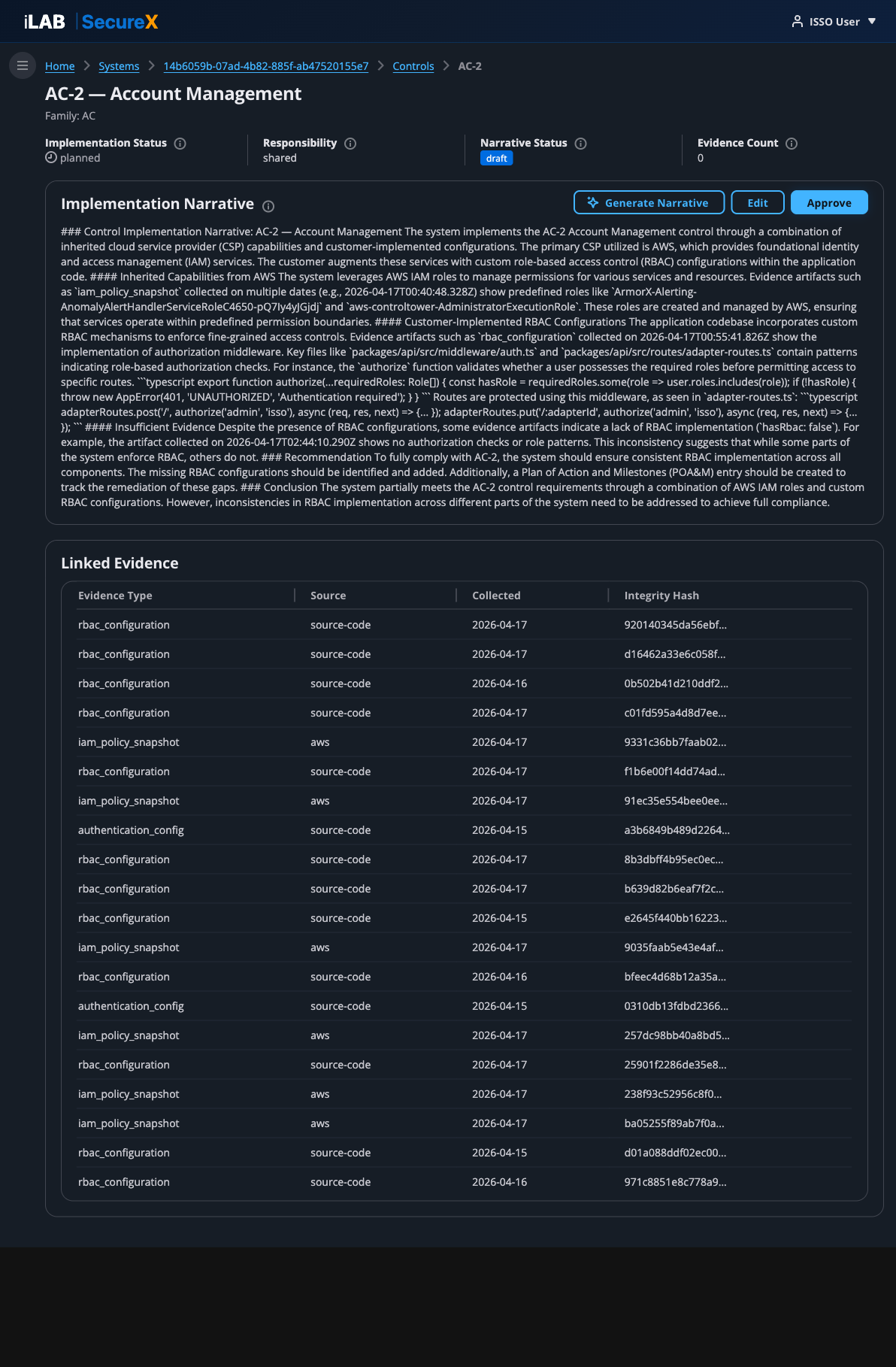
Figure 7.1: The Control Detail page for AC-2 — Account Management. Shows the AI-generated narrative (draft status), linked evidence artifacts with integrity hashes, and the Generate/Edit/Approve buttons.
The Control Detail Page
Each control has a dedicated detail page showing:
Key Metrics (top bar)
- Implementation Status — Current status (Implemented, Partially Implemented, Planned, Inherited)
- Responsibility — Who is responsible (Customer, Inherited, Shared)
- Narrative Status — Draft, Approved, or Rejected
- Evidence Count — Number of evidence artifacts linked to this control
Implementation Narrative
The main section shows the AI-generated narrative text. Three action buttons are available:
- Generate Narrative — (Re)generate the narrative using AI. Sends the control's linked evidence to Amazon Bedrock.
- Edit — Opens the narrative in a text editor so the ISSO can make manual adjustments.
- Approve — Marks the narrative as approved. Only appears when the status is "draft" or "review."
Linked Evidence
A table showing all evidence artifacts mapped to this control, including:
- Evidence Type (e.g.,
rbac_configuration, iam_policy_snapshot)
- Source adapter (e.g.,
source-code, aws)
- Collection date
- SHA-256 integrity hash (truncated for display)
Bulk Approval
Back on the Narrative Review page, the "Approve All Drafts" button lets the ISSO bulk-approve all draft narratives at once. The button shows the count of pending drafts (e.g., "Approve All Drafts (116)").
⚠️ Review Before Bulk Approving
While bulk approval is convenient, the ISSO should review at least the high-impact controls individually before approving. The AI is good but not perfect — human judgment is essential for controls like AC-2, AU-2, SC-7, and IA-2.
✅ Sarah's Progress
Sarah reviews the top 20 high-impact controls individually, editing 3 narratives where she wants more specific language. She then bulk-approves the remaining 98 draft narratives. Total time: about 2 hours of review work — compared to weeks of manual writing.
Chapter 8
Export the ATO Package
One click produces submission-ready documents in the format your assessor needs.
📖 Story
With all narratives approved, Sarah navigates to the Export Center. She generates an OSCAL JSON file for machine-readable assessment, a Word document for the traditional SSP review, and an eMASS CSV for import into the DoD's enterprise system. Each export takes a few seconds and produces a downloadable file.
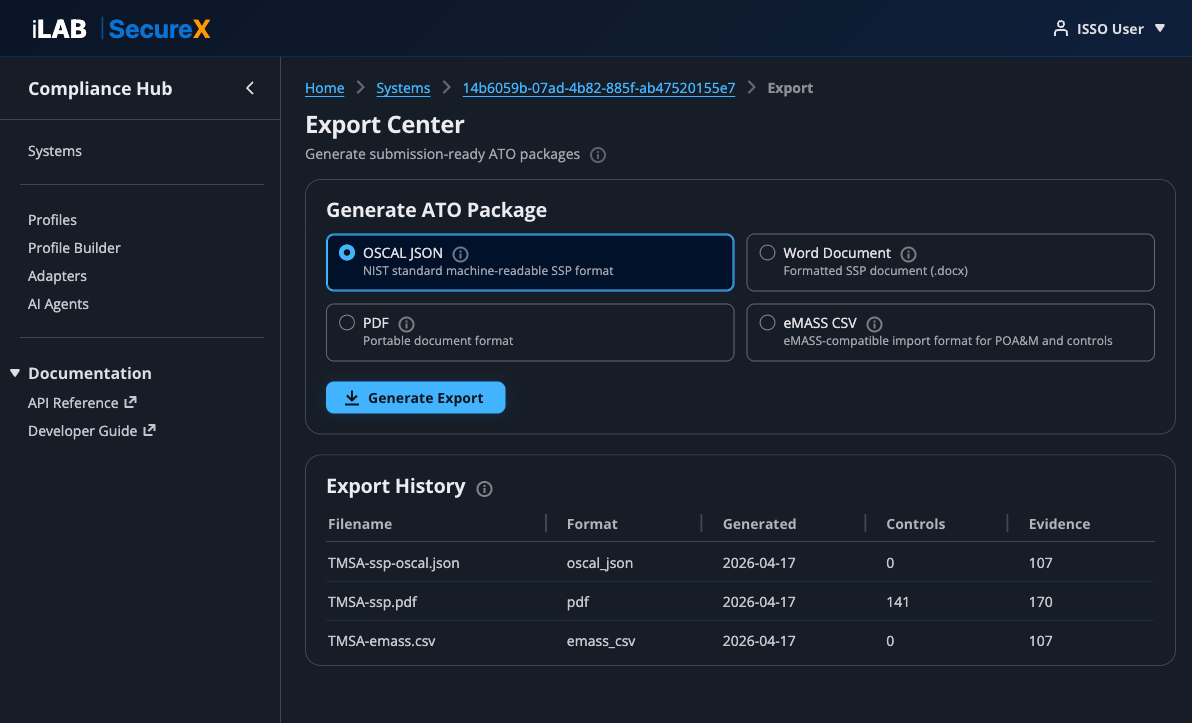
Figure 8.1: The Export Center. Four export formats available, with a history of previously generated exports showing filenames, formats, dates, and content counts.
Available Export Formats
| Format | Description | Use Case |
|---|
| OSCAL JSON | NIST Open Security Controls Assessment Language — machine-readable SSP | Automated assessment tools, GRC platforms, interoperability |
| Word Document (.docx) | Formatted SSP with title page, system description, controls organized by family, and POA&M section | Traditional assessor review, AO signature |
| PDF | Print-ready document with automatic page breaks and formatting | Distribution, archival, email |
| eMASS CSV | Import format for DoD's Enterprise Mission Assurance Support Service | Direct import into eMASS |
Generating an Export
- Select the desired format by clicking its tile
- Click "Generate Export"
- A success alert appears with the filename and a download link
- The export appears in the Export History table below
Each export includes:
- System information (name, acronym, impact level, deployment environment)
- All control implementations with narratives
- Evidence references with integrity hashes
- POA&M items (if any)
- Metadata (control count, evidence count, generation date)
💡 Download Links
Export download links are presigned S3 URLs valid for 24 hours. After that, you can regenerate the export from the Export Center.
Chapter 9
Manage Compliance Profiles
Compliance frameworks are configuration, not code — add new frameworks by creating a YAML profile.
📖 Story
Dr. Patel, the ISSM, wants to see what compliance frameworks are available. She navigates to the Profiles page and sees 5 built-in profiles. She also wants to create a custom profile for an agency-specific baseline — the Profile Builder wizard walks her through it in 8 steps.
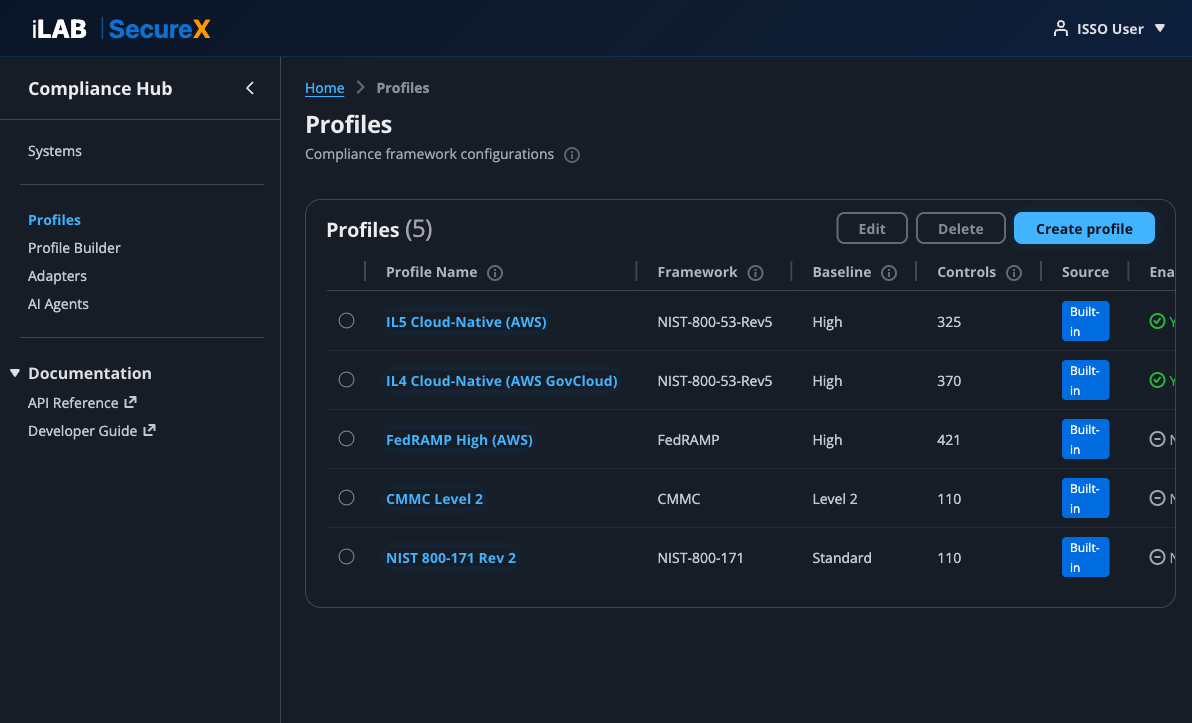
Figure 9.1: The Profiles page. 5 built-in profiles covering IL5, IL4, FedRAMP High, CMMC Level 2, and NIST 800-171. Custom profiles can be created with the Profile Builder.
Built-in Profiles
| Profile | Framework | Baseline | Controls |
|---|
| IL5 Cloud-Native (AWS) | NIST-800-53-Rev5 | High | 325 |
| IL4 Cloud-Native (AWS GovCloud) | NIST-800-53-Rev5 | High | 370 |
| FedRAMP High (AWS) | FedRAMP | High | 421 |
| CMMC Level 2 | CMMC | Level 2 | 110 |
| NIST 800-171 Rev 2 | NIST-800-171 | Standard | 110 |
The Profile Builder (8-Step Wizard)
Click "Create profile" to open the Profile Builder — an 8-step wizard that guides you through creating a custom compliance profile:
- Basic Information — Profile ID, name, version, framework, baseline, description, target application types, target environments
- Catalog — Control catalog source, baseline, exclusions (controls to skip), and additions (extra controls)
- Inheritance (optional) — CSP provider name, SSP reference, and inherited control definitions with status (fully inherited, shared, customer responsible)
- Evidence Mappings — Map controls to required evidence types, specify which adapter collects each type, and write AI narrative prompts per control
- Narrative Templates (optional) — Handlebars templates for formatting AI-generated narratives
- Export Configuration — Enable/disable OSCAL, Word, PDF, and eMASS export formats
- Evidence Collection — Collection schedule (cron expression), on-deployment collection toggle, retention period
- Review & Save — Summary of all settings with validation
💡 No Code Required
Adding a new compliance framework requires zero code changes. The entire framework definition — controls, inheritance, evidence mappings, AI prompts, export settings — is captured in the profile configuration.
Chapter 10
Evidence Adapters
Pluggable evidence sources — 6 built-in, unlimited custom.
📖 Story
Marcus, the developer, wants to understand what evidence adapters are available and how they work. He navigates to the Adapters page to see all 6 built-in adapters. He also wants to add a custom PostgreSQL adapter for their database — the "Create adapter" button lets him register it with a JSON Schema for connection settings.
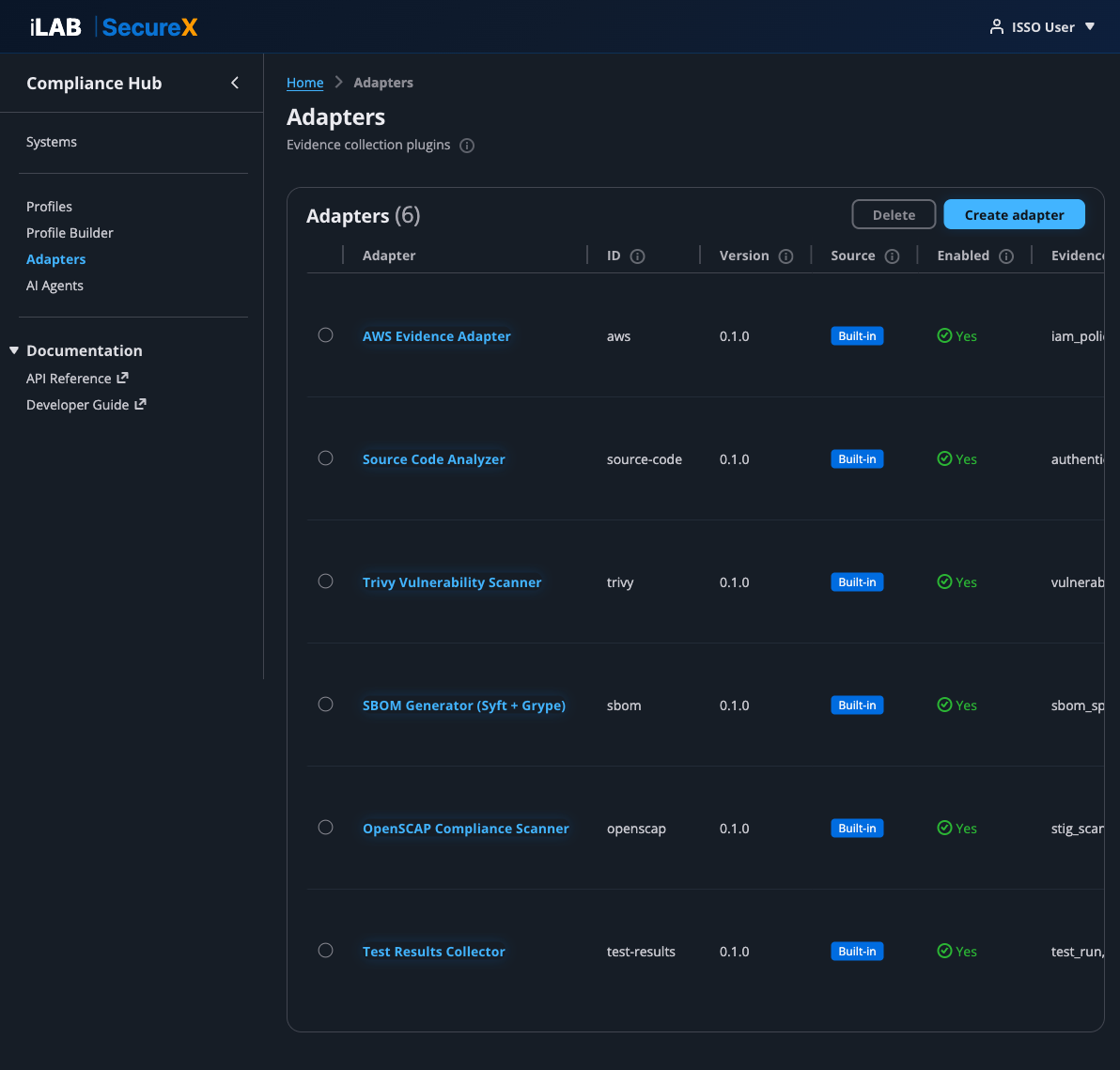
Figure 10.1: The Adapters page. 6 built-in adapters: AWS Evidence, Source Code Analyzer, Trivy, SBOM, OpenSCAP, and Test Results. Custom adapters can be created with the "Create adapter" button.
Built-in Adapters
| Adapter | ID | Evidence Types |
|---|
| AWS Evidence Adapter | aws | iam_policy_snapshot, cloudtrail_config, kms_key_inventory, vpc_configuration, security_hub_findings, cloudwatch_log_groups |
| Source Code Analyzer | source-code | authentication_config, rbac_configuration, audit_trail_config, input_validation, encryption_config, dependency_manifest, docker_configuration |
| Trivy Vulnerability Scanner | trivy | vulnerability_scan, misconfiguration_scan, secret_scan |
| SBOM Generator (Syft + Grype) | sbom | sbom_spdx, sbom_cyclonedx, vulnerability_correlation |
| OpenSCAP Compliance Scanner | openscap | stig_scan_results, cis_benchmark_results |
| Test Results Collector | test-results | test_run_results, test_coverage |
Adapter Detail Page
Click any adapter name to open its detail page, which shows:
- Configuration — ID, version, source (built-in or custom), enabled status, target environments
- Connection Settings — Dynamic form generated from the adapter's JSON Schema (for custom adapters with configurable connection parameters)
- Supported Evidence Types — All evidence types this adapter can collect
- Test Adapter — Enter a scan target and run a test to verify the adapter works
- Health Check — Verify connectivity to the adapter's data source
Creating a Custom Adapter
Click "Create adapter" to register a new evidence source. You provide:
- ID — Unique kebab-case identifier (e.g.,
postgresql)
- Name — Human-readable name
- Description — What the adapter collects
- Evidence Types — Comma-separated list of evidence types it produces
- Target Environments — Where it can run (e.g., aws, on-premise)
- Config Schema (JSON) — A JSON Schema defining connection settings fields (host, port, credentials, etc.). The platform auto-generates a configuration form from this schema.
Chapter 11
AI Agents
Pluggable AI reasoning — different agents for different compliance frameworks and tasks.
📖 Story
Sarah wants to run a CMMC assessment against TMSA's evidence. She navigates to the AI Agents page, clicks into the CMMC Level 2 Assessor agent, selects the "cmmc_practice_assessment" capability, chooses the Access Control (AC) domain, and invokes the agent. The AI produces a detailed practice-by-practice assessment using C3PAO language. Sarah reviews the output and clicks "Approve."
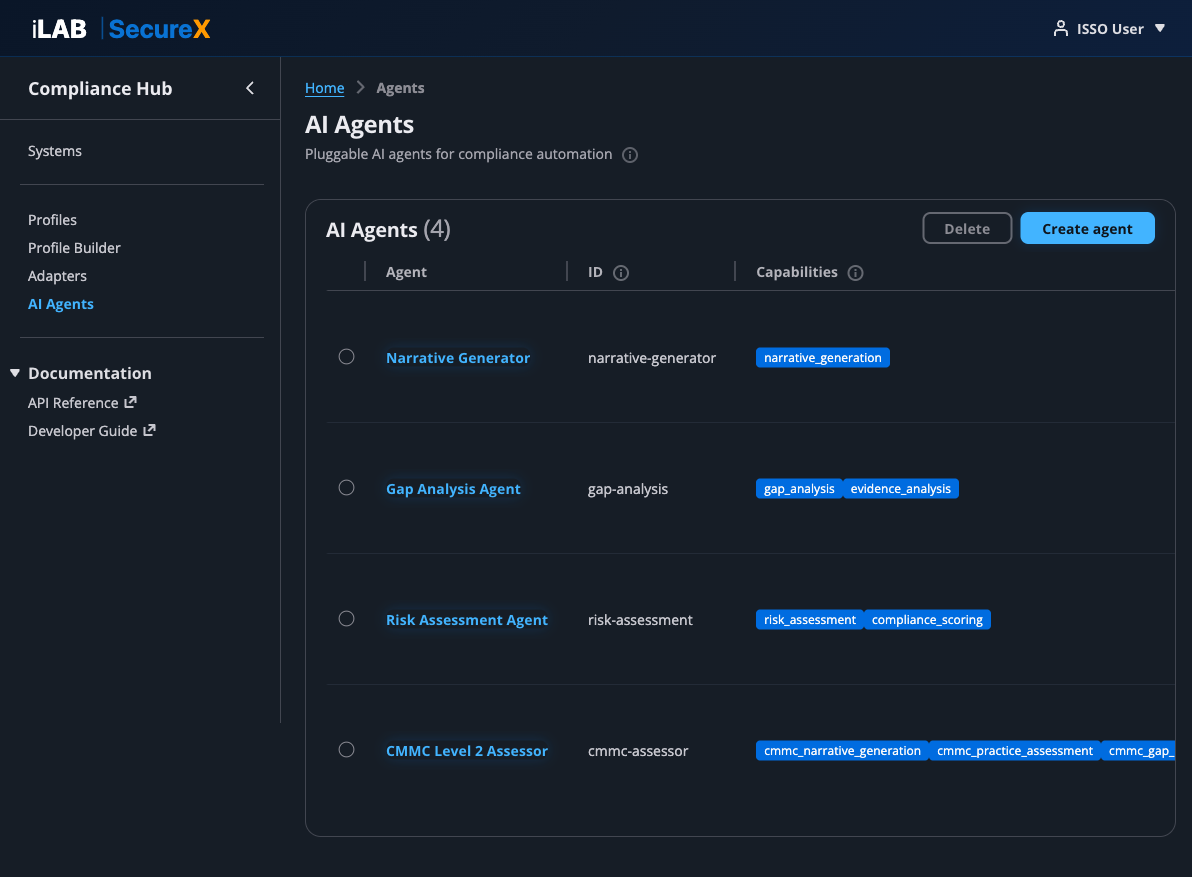
Figure 11.1: The AI Agents page. 3 built-in agents (Narrative Generator, Gap Analysis, Risk Assessment) plus the custom CMMC Level 2 Assessor.
Built-in Agents
| Agent | Capabilities | Description |
|---|
| Narrative Generator | narrative_generation | Generates SSP control implementation narratives from evidence. The primary agent used in the ATO workflow. |
| Gap Analysis Agent | gap_analysis, evidence_analysis | Identifies missing evidence and recommends specific collection actions. |
| Risk Assessment Agent | risk_assessment, compliance_scoring | Scores risk posture with quantified metrics and prioritized recommendations. |
| CMMC Level 2 Assessor | cmmc_narrative_generation, cmmc_practice_assessment, cmmc_gap_analysis | Custom agent that generates CMMC-specific assessments using C3PAO language. |
Threat Intelligence Agents
Three new agents transform compliance findings into threat-informed intelligence using MITRE ATT&CK, CISA KEV, and EPSS data via a Bedrock Knowledge Base.
| Agent | Capabilities | Description |
|---|
| Threat Exposure Mapper | threat_exposure_mapping, evidence_analysis | Maps STIG/CIS findings and control gaps to MITRE ATT&CK techniques. Identifies which adversary groups (APT28, APT29, APT41, Lazarus, etc.) can exploit open findings and traces potential attack paths through the environment. |
| Adversary Prioritization Agent | adversary_prioritization, risk_assessment | Prioritizes remediation based on adversary relevance, CISA KEV status, EPSS scores, and attack path analysis. Produces a threat-informed priority stack instead of flat CAT I/II/III severity ranking. |
| Threat Landscape Monitor | threat_landscape_monitoring, evidence_analysis | Continuously monitors external threat feeds (CVE, CISA KEV, EPSS, ATT&CK updates) and re-prioritizes the remediation queue when the threat landscape changes. Generates alerts when new threats map to open findings. |
💡 Threat Intelligence Agent Pipeline
The three threat intelligence agents work as a pipeline: Threat Exposure Mapper maps findings to ATT&CK techniques → Adversary Prioritization Agent ranks remediation by adversary relevance → Threat Landscape Monitor re-prioritizes when the threat landscape changes. Each agent can also be invoked independently.
🔍 Bedrock Knowledge Base
The threat intelligence agents are backed by a Bedrock Knowledge Base containing MITRE ATT&CK data, NIST 800-53 to ATT&CK mappings, CISA KEV catalog, EPSS scores, and curated adversary profiles for DoD/diplomatic sector threat groups. The KB uses a managed vector store — no OpenSearch or Aurora required. Cost is pay-per-query only.
Agent Detail Page
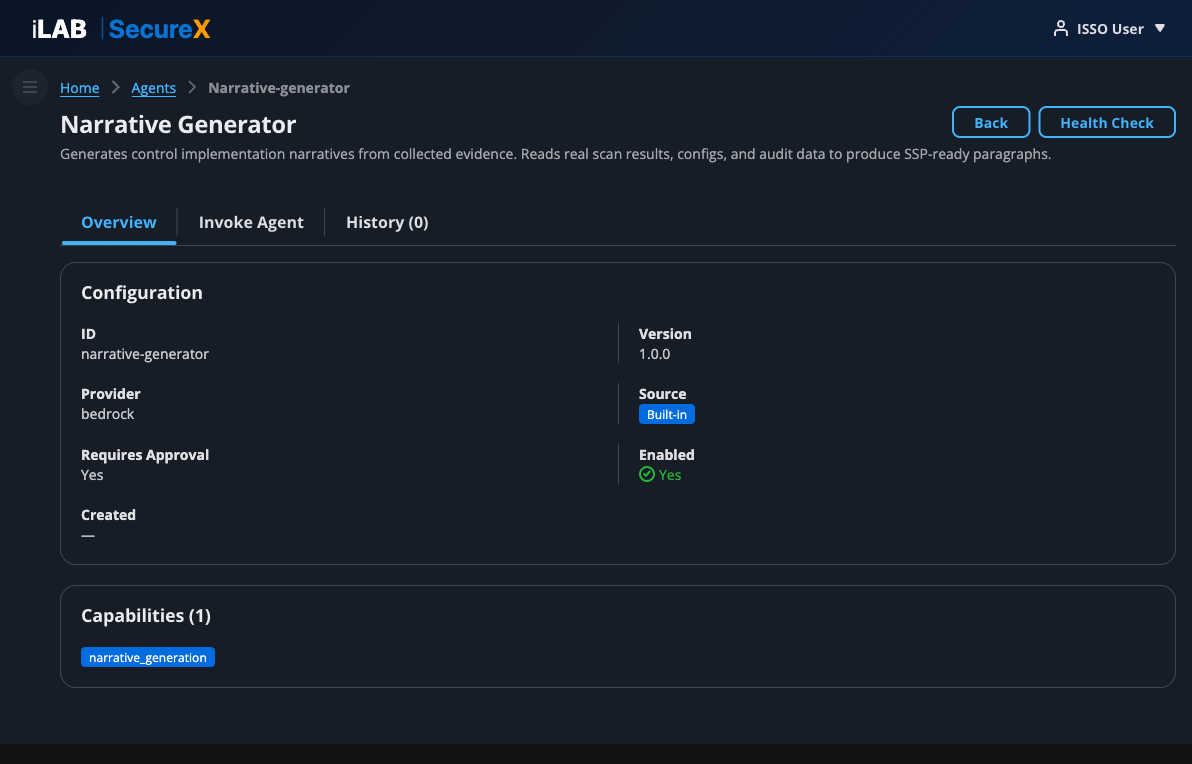
Figure 11.2: Agent Detail page — Overview tab showing configuration (ID, version, provider, source, approval requirement) and capabilities.
Each agent has three tabs:
Overview Tab
Shows the agent's configuration: ID, version, provider (bedrock), source (built-in or custom), whether it requires human approval, and its capabilities.
Invoke Agent Tab
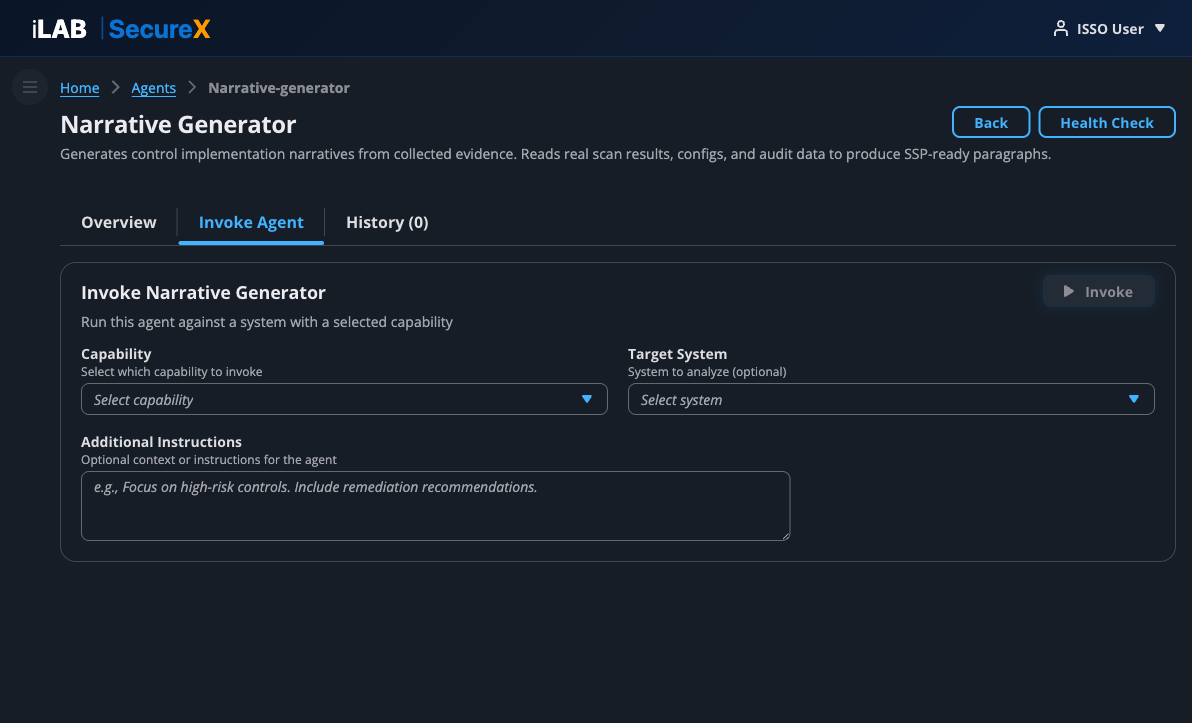
Figure 11.3: The Invoke Agent tab. Select a capability, optionally select a target system, add instructions, and click Invoke.
To invoke an agent:
- Select a Capability — Choose which capability to run (e.g., narrative_generation, gap_analysis)
- Select a Target System (optional) — The system whose evidence the agent will analyze
- CMMC Domain Filter (CMMC agents only) — Scope the assessment to a specific domain (AC, AU, CM, IA, SC, etc.) for thorough per-practice analysis
- Additional Instructions (optional) — Free-text instructions for the agent
- Click "Invoke"
The agent's output is rendered as formatted HTML with headers, bullet points, and evidence citations. If the agent requires human approval, Approve and Reject buttons appear below the output.
History Tab
Shows all previous invocations for this agent with: invocation ID, capability, status, approval status, who triggered it, date, and action buttons. Click any invocation to view its full output in a modal.
Creating a Custom Agent
Click "Create agent" on the Agents list page. Provide:
- ID — Unique kebab-case identifier
- Name — Human-readable name
- Description — What the agent does
- Provider — AI backend (bedrock, openai, custom)
- Capabilities — Comma-separated list of capabilities
- Requires Human Approval — Whether outputs need ISSO approval before use
Chapter 12
POA&M Management
Track known weaknesses with remediation plans, milestones, and deadlines.
📖 Story
During her review, Sarah identifies 3 controls where the evidence is insufficient for a "MET" determination. She creates POA&M items for each, documenting the weakness, severity, remediation plan, responsible party, and target completion date. The POA&M Summary on the dashboard tracks her progress.
Plan of Action & Milestones (POA&M) items track known security weaknesses that need remediation. They're a required part of every ATO package.
Creating a POA&M Item
Navigate to the POA&M page from the System Dashboard (click "View All POA&Ms"). Each POA&M item includes:
- Control ID — The NIST 800-53 control with the weakness
- Weakness Description — What the gap or vulnerability is
- Severity — Critical, High, Medium, or Low
- Status — Open, In Progress, Completed, or Risk Accepted
- Remediation Plan — Specific steps to address the weakness
- Responsible Party — Who owns the remediation
- Milestones — Individual remediation steps with due dates
POA&M Summary (Dashboard)
The POA&M Summary card on the System Dashboard shows:
- Total POA&M count, overdue items, in-progress items, completed items
- Remediation progress bar
- High-priority items (critical/high severity that are still open)
- Items due within 30 days
⚠️ Overdue POA&Ms
Overdue POA&M items are flagged in red on the dashboard. Assessors pay close attention to overdue items — they indicate the organization isn't meeting its own remediation commitments.
Chapter 13
Continuous Monitoring & cATO
ATO isn't a one-time event — it's a continuous process. iLAB SecureX is built for cATO.
📖 Story
Three weeks after starting, Sarah has a complete ATO package: 141 controls with approved narratives, 170 evidence artifacts with integrity hashes, and export packages in OSCAL, Word, and eMASS formats. But the work doesn't stop at authorization. Dr. Patel sets up scheduled evidence collection to maintain continuous compliance posture.
Traditional ATO is a point-in-time snapshot that goes stale immediately. iLAB SecureX is designed for Continuous Authority to Operate (cATO):
- Scheduled Evidence Collection — Evidence adapters can run on configurable schedules (daily, weekly, or custom cron expressions). New evidence is collected automatically without manual triggers.
- Live Dashboards — The System Dashboard shows real-time compliance posture. ATO readiness, evidence freshness, and control status update with every collection run.
- Drift Detection — When a configuration changes (a security group opens, CloudTrail is disabled, a new vulnerability appears), the platform detects it on the next collection run and updates the compliance posture.
- Webhook Notifications — Register webhooks to receive real-time notifications when evidence changes, controls drift, or POA&M items become overdue.
The cATO Workflow
- Initial ATO package is submitted and authorized
- Evidence adapters run on schedule (e.g., daily at midnight)
- Dashboard shows real-time compliance posture to the ISSM
- When drift is detected, the ISSO is notified and creates POA&M items
- The AO has a live view of compliance posture — no waiting for the next reauthorization cycle
✅ Sarah's ATO Timeline
Week 1: System registered, evidence collected (170 artifacts), AI narratives generated (121 controls)
Week 2: ISSO review and approval of narratives, POA&M items created for 3 gaps
Week 3: Final package exported (OSCAL + Word + eMASS), submitted for assessment
Total: 3 weeks — compared to the traditional 6–12 months of manual work.
Chapter 14
Threat Intelligence
Transform compliance findings into threat-informed defense — know which adversaries can exploit your open findings.
📖 Story
Sarah has 47 open CAT I STIG findings across 12 systems. The traditional approach: prioritize by severity category and work through them. But Dr. Patel asks a harder question: "Which of these findings actually matter given the adversaries targeting us?"
Sarah invokes the Threat Exposure Mapper agent. It maps her 47 findings to MITRE ATT&CK techniques and identifies that 8 of them enable techniques actively used by APT29 (Russia/SVR) — a Tier 1 threat to their diplomatic infrastructure. 3 of those 8 are on perimeter-exposed systems.
She then runs the Adversary Prioritization Agent, which produces a threat-informed remediation plan: fix those 3 perimeter findings first (blocks APT29's initial access), then the remaining 5 (blocks lateral movement), then the other 39 in EPSS-score order. The flat CAT I list becomes a strategic defense plan.
The Gap: Compliance Data as Threat Intelligence
Every STIG assessment generates thousands of findings, but those findings are treated as compliance checkboxes — not as threat intelligence. The gap: nobody connects "this STIG finding is open" to "this is the specific adversary technique that exploits it."
iLAB SecureX bridges that gap with three threat intelligence agents that transform compliance data into adversary-informed, prioritized intelligence.
The Three-Agent Pipeline
1. Threat Exposure Mapper
Takes STIG/CIS findings and control gaps from the existing compliance pipeline and maps them to MITRE ATT&CK techniques using published NIST 800-53 → ATT&CK mappings.
Input: Open findings and control gaps (already generated by existing agents)
Output: For each finding — the ATT&CK techniques it enables, which adversary groups use those techniques, and potential attack paths through the environment.
Key insight: No new data collection required. It transforms data the platform already produces.
2. Adversary Prioritization Agent
Takes the ATT&CK mappings from the Threat Exposure Mapper and ranks remediation by adversary relevance — not just severity category.
Prioritization factors:
- Adversary relevance — Does the finding enable techniques used by threat groups targeting your sector?
- CISA KEV status — Is the vulnerability in the Known Exploited Vulnerabilities catalog?
- EPSS score — Probability of exploitation in the next 30 days
- Attack path position — Initial access findings rank higher than lateral movement
- Blast radius — Perimeter-exposed systems rank higher than internal-only
Output: A threat-informed remediation priority stack with immediate/short-term/medium-term/long-term action items and risk reduction projections.
3. Threat Landscape Monitor
Continuously watches external threat feeds and re-prioritizes when the landscape changes.
Triggers:
- New CVE that maps to a STIG control you have open
- New CISA KEV entry affecting your tech stack
- EPSS score increase for a vulnerability in your environment
- New ATT&CK technique attribution to a threat group in your adversary set
Output: Real-time re-prioritization alerts with severity, affected findings, and recommended actions.
Recommended schedule: Every 6 hours for continuous monitoring.
Bedrock Knowledge Base
The threat intelligence agents are backed by a Bedrock Knowledge Base containing:
- MITRE ATT&CK Enterprise — Full technique catalog with adversary group profiles
- NIST 800-53 → ATT&CK mappings — Published by the MITRE Center for Threat-Informed Defense
- CISA KEV catalog — Known exploited vulnerabilities with remediation deadlines
- EPSS scores — Exploit prediction scores for probability of exploitation
- Curated adversary profiles — DoD/diplomatic sector threat groups (APT28, APT29, APT41, Lazarus Group, Charming Kitten, Volt Typhoon, Sandworm, Kimsuky)
The KB uses Bedrock's managed vector store — no OpenSearch or Aurora required. Cost is pay-per-query only, essentially zero when idle.
Default Adversary Profile: DoD/Diplomatic Sector
| Tier | Group | Attribution | Primary Targets |
|---|
| Tier 1 | APT29 / Cozy Bear | Russia/SVR | Government agencies, diplomatic missions, think tanks |
| Tier 1 | APT28 / Fancy Bear | Russia/GRU | Government, military, defense, diplomatic organizations |
| Tier 1 | APT41 / Winnti | China/MSS | Government, healthcare, telecom, technology |
| Tier 1 | Lazarus Group | North Korea/RGB | Government, defense, financial, cryptocurrency |
| Tier 1 | Charming Kitten / APT35 | Iran/IRGC | Government, diplomatic, academic, human rights |
| Tier 2 | Volt Typhoon | China | US critical infrastructure, government networks |
| Tier 2 | Sandworm | Russia/GRU Unit 74455 | Government, energy, critical infrastructure |
| Tier 2 | Kimsuky | North Korea | Government, think tanks, Korean peninsula policy |
Adversary profiles are configurable per deployment. Organizations can define their own priority threat groups based on their sector and mission.
Invoking Threat Intelligence Agents
Navigate to AI Agents → select the threat intelligence agent → Invoke Agent tab:
- Select the capability (e.g.,
threat_exposure_mapping)
- Select the target system
- Optionally add instructions (e.g., "Focus on perimeter-exposed systems")
- Click "Invoke"
Or via API:
POST /api/v1/agents/threat-exposure-mapper/invoke
{
  "capability": "threat_exposure_mapping",
  "systemId": "your-system-uuid",
  "prompt": "Map all open findings to ATT&CK techniques"
}
The Before & After
| Before (Compliance Only) | After (Threat-Informed) |
|---|
| Prioritization | CAT I → CAT II → CAT III | By adversary relevance, EPSS, KEV, attack path |
| Question answered | "Are we compliant?" | "Are we defended against the adversaries targeting us?" |
| Remediation order | Flat severity list | Strategic defense plan with risk reduction projections |
| When landscape changes | Wait for next assessment cycle | Automatic re-prioritization with alerts |
💡 Future: GraphRAG
The current Knowledge Base uses vector search for retrieval. The production roadmap includes GraphRAG (Neptune Analytics) for relationship-aware retrieval — enabling multi-hop queries like "which open findings enable attack paths from initial access to data exfiltration for APT29?" across the full ATT&CK graph.
Chapter 15
AI-Powered ATO Automation
Six new AI agents that automate the most time-consuming parts of the ATO process.
Inheritance Resolution
Navigate to your system dashboard and click "Resolve Inheritance". The agent analyzes your deployment environment and determines which controls are inherited from your Cloud Service Provider.
For AWS GovCloud systems, this typically marks 50-70 controls as inherited or shared, jumping your ATO readiness from ~14% to ~50% in one step.
Review the results table, override any decisions you disagree with, then click "Accept All" or "Apply Selected".
POA&M Generator
After running gap analysis, invoke the POA&M Generator agent. It creates properly formatted POA&M items for every evidence gap, complete with weakness descriptions, severity justifications, remediation plans, and milestones.
Package Validator
Before exporting your ATO package, run the Package Validator. It checks that every control has a narrative or POA&M, evidence is fresh, narratives reference real evidence, and framework requirements are met.
Assessor Simulator
The Assessor Simulator predicts what a real 3PAO assessor would flag during review. It identifies weak narratives, missing evidence, and controls that don't match their implementation claims. Fix these issues before the real assessment.
Compliance Trend Analyst
The Compliance Trend Analyst shows how your compliance posture has changed over time, predicts when you'll be ATO-ready based on current velocity, and recommends focus areas for fastest improvement.
Full ATO Orchestrator
The Full ATO Orchestrator runs the complete pipeline in one step: inheritance resolution, gap analysis, POA&M generation, package validation, and assessor simulation. Produces a comprehensive readiness report showing exactly where you stand and what to do next.
The ATO Readiness Process
| Step | Action | Impact |
|---|
| 1 | Resolve Inheritance | 14% → ~50% (inherited controls counted as compliant) |
| 2 | Collect Evidence | Evidence mapped to remaining customer controls |
| 3 | Generate Narratives | ~50% → ~80% (AI writes implementation statements) |
| 4 | Review & Approve | ISSO approves narratives (1-2 hours) |
| 5 | Generate POA&Ms | Remaining gaps tracked with remediation plans |
| 6 | Validate Package | Verify completeness before submission |
| 7 | Simulate Assessment | Catch issues before the real assessor does |
| 8 | Export & Submit | OSCAL, Word, PDF, SAR ready for assessor |
Reference
All Features & Capabilities
A complete reference of every feature in iLAB SecureX.
Navigation
The sidebar navigation provides access to all major sections:
- Systems — List and manage authorization boundaries
- Profiles — View and manage compliance framework profiles
- Profile Builder — Create custom compliance profiles (8-step wizard)
- Adapters — View and manage evidence collection adapters
- AI Agents — View and manage AI agents for compliance automation
System-Level Pages
Within each system, the following pages are available:
- Dashboard — Executive summary, ATO readiness, compliance timeline, adapter status, quick actions
- Controls — Full control catalog with search, filter, and status tracking
- Control Detail — Individual control with narrative, evidence, and approval workflow
- Evidence — Evidence collection panel, artifact table, collection run history
- Evidence Gaps — Gap analysis showing controls with missing evidence
- Narratives — Bulk narrative generation, AI model selection, approval progress
- Export — Package generation in OSCAL, Word, PDF, and eMASS formats
- POA&M — Plan of Action & Milestones management
API Access
Every feature in iLAB SecureX is accessible via REST API. The dashboard is a consumer of the API — not a separate system. Third-party tools, CI/CD pipelines, and GRC platforms can integrate directly.
API Base URL: https://<your-api-gateway>/v1/api/v1/
Authentication: Bearer token (JWT) or API key (X-API-Key header)
Keyboard Shortcuts & Tips
- Click the ⓘ icons throughout the UI for contextual help on any field or column
- Use the search box on the Control Catalog to quickly find controls by ID or title
- Use the family filter dropdown to focus on a specific control family (AC, AU, CM, etc.)
- The breadcrumb trail at the top of every page shows your current location and lets you navigate back